
For those of us who want to record our gaming
exploits, demo an app for the wider world to see, or email a tutorial to
mom and dad through the wonder of video, it’s fortunate that recording
screencasts is no longer the exclusive preserve of devs and serious
coders. Whatever platform your smartphone (or tablet) runs, you can
record on-screen activity without too much trouble.
iOS
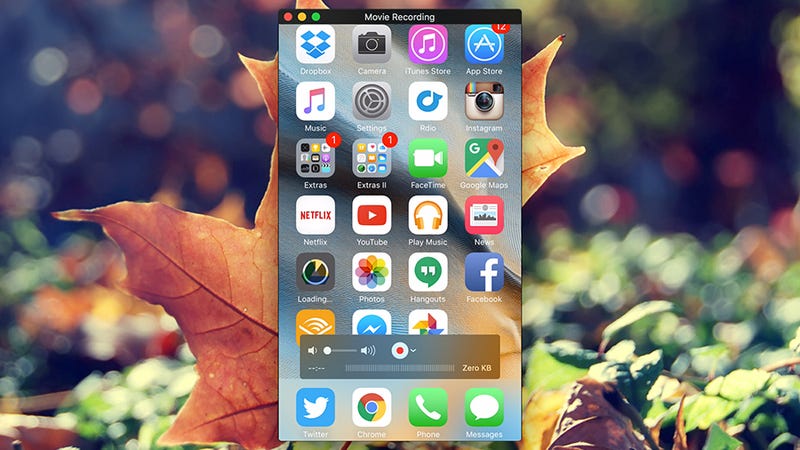
Recording screencasts from iOS is pretty straightforward if you have a new-ish iPhone and Mac machine on hand (as you might expect, Apple makes life much easier if you use a lot of its gear). The version of QuickTime bundled with Yosemite (or later) can record activity on the screen of devices running iOS 8 (or later) without breaking a sweat.
Note that the time of your device is set to Apple’s preferred 9:41am while you’re recording—don’t suddenly panic that someone has taken over your device, as it reverts back to normal once you hit the stop button. It’s also worth remembering you have the option of using your computer’s mic or the one on your iPhone if you want to add an audio narration to the video.
If you don’t have a MacBook or iMac lying around then it gets a bit more complicated. Third-party apps just don’t have enough device access to be able to record screencasts (unless you’re in the mood to jailbreak), so you’re going to need a computer of some description—unfortunately the QuickTime version of Windows doesn’t have the same capabilities as the Mac one.
Android
Recording screencasts on Android has been made much easier with the release of the YouTube Gaming app (compatible with devices running Android 4.1 and above). Obviously it’s designed primarily to record your gaming exploits, but you can use it to log pretty much anything you’re doing on your device, no computer connection required.
The subsequent screen lets you choose an app to record—this will start the recording but you don’t have to stay inside this app if you don’t want to. Tap Start Now to begin and you’re off: Down at the bottom of the screen is a console that lets you turn the microphone input on and off, and choose whether or not to include a live stream of your beautiful face as well (tag and drag to reposition this console). Select the stop button when you’ve finished.
You’re then given the option to trim your video and upload it to YouTube (where you can set it as private) but if you’d rather not transfer it to the web then you don’t have to—just back out of the screen and you’ll find your video saved in your device’s gallery, where you can edit and do whatever you want with it.
